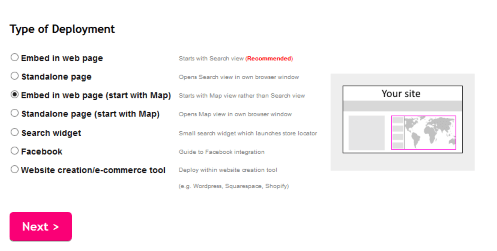











Blipstar Plus offers a number of options to publish your store locator so customers can start using and benefitting from it. Options 1, 2 and 3 are great for simplicity, Option 4 is cool if you have a basic understanding of Javascript, Option 4 is perfect if your business or organisation has a Facebook page and Options 5, 6 or 7 will help if you're using one of the popular open source Content Management Systems.
The simplest option is to open your store locator in its own page. You do this by linking to your unique Blipstar URL.
<a href='http://blipstar.com/blipstarplus/viewer/blipstar.php?uid=2435124'>Store locator</a> |
If you can edit the pages of your website manually (e.g. HTML, PHP, ASP or JSP pages) another method is to use an iframe to embed your store locator directly within a page. Just copy and paste the following code into the page.
<iframe width='805' height='505' src='http://blipstar.com/blipstarplus/viewer/blipstar.php?uid=2435124' scrolling='no' frameborder='0'></iframe> |
TIP: If you have a mobile-specific version of your site we recommend the standalone link method (Option 1) rather than using an iframe.
TIP: If you change the width and height of your store locator, you'll also need to update the width and height values in the iframe tag.
Using Javascript you can open up your store locator in a pop-up window. Simply copy and paste the following code in the place on your page where you want the link to appear.
<a href='javascript:openStoreLocator();'>Store locator</a> |
This should work for the majority of users but as it relies on Javascript and browser settings this cannot be guaranteed. As a fallback it's probably a good idea to offer a normal standalone link two (see Option 1 above).
TIP: If you change the width and height of your store locator, you'll also need to update the width and height values in the Javascript code.
If you want something a bit flash then you can open your store locator inside a funky JQuery lightbox (a lightbox allows you to view large versions of images without having to actually leave the current page. In our case, instead of an image, we display the store locator). Here we use the excellent prettyPhoto plugin from No Margin For Error. If your site already uses JQuery then even better, but remember to remove the line of code for loading the JQuery library (as you don't want to load it twice!).
<script type='text/javascript' src='http://ajax.googleapis.com/ajax/libs/jquery/1.6.4/jquery.min.js'></script> <script type='text/javascript' src='http://www.blipstar.com/blipstarplus/prettyPhoto/js/jquery.prettyPhoto.js'></script> <link rel='stylesheet' href='http://www.blipstar.com/blipstarplus/prettyPhoto/css/prettyPhoto.css' type='text/css' media='screen'/> |
<!-- Link to the store locator -->
<a id='bs_storelocator' title='' href='#?custom=true&width=805&height=505'>Store locator</a>
<!-- Set up the lightbox -->
<script type='text/javascript'>
$(document).ready(function(){
$('#bs_storelocator').prettyPhoto({
custom_markup:
'<iframe src="http://blipstar.com/blipstarplus/viewer/blipstar.php?uid=2435124" width="805" height="505" scrolling="no" frameborder="no">
</iframe>',
social_tools: false
});
});
</script>
|
At last, an easy way to add a store locator to your Facebook page! Now your customers can use your store locator from within Facebook (hot off the press - i.e. should work but might need tweaking!)
Go to how to create a store locator in Facebook for details.
You can embed your store locator within a Joomla powered site without writing a single line of code, thanks to iframes. How you do this depends on the version:
For Joomla 1.7+ (and Joomla 1.6) see Create a store locator in Joomla 1.7.
For Joomla 1.5 see Create a store locator in Joomla 1.5.
If all that sounds a little complicated then you can always add a standard link in an article (see Option 1) as you would add a link to any other website. This will open your locator in its own page.
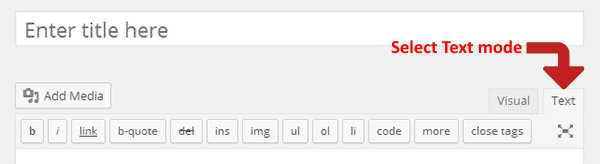
Due to the way Wordpress works, using Option 2 won't work because it automatically strips out iframe tags when you save the article. This is understandable (for site security) but annoying for our purposes. Still, there is a workaround, courtesy of Designzzz.
function mytheme_tinymce_config( $init ) {
$valid_iframe = 'iframe[id|class|title|style|align|frameborder|height|longdesc|marginheight|marginwidth|name|scrolling|src|width]';
if ( isset( $init['extended_valid_elements'] ) ) {
$init['extended_valid_elements'] .= ',' . $valid_iframe;
} else {
$init['extended_valid_elements'] = $valid_iframe;
}
return $init;
}
add_filter('tiny_mce_before_init', 'mytheme_tinymce_config');
|
NB: This won't work if your blog/site is hosted at wordpress.com as they don't allow the use of iframes.
If all that sounds a little too complicated then you can always add a standard link in a Wordpress post (see Option 1) as you would add a link to any other website. This will open your locator tool in its own webpage.
Drupal Embedded
If you're using the TinyMCE editor within your installation of Drupal the iframe code in Option 2 won't work because the editor automatically strips out the iframe tag.
A neat solution is available courtesy of Toodlepip (check out their site to find out the details of the workaround).
Drupal Lightbox
On sites built with Drupal it's also easy to open your store locator within a lightbox.
<a href='http://blipstar.com/blipstarplus/viewer/blipstar.php?uid=2435124' rel='lightframe[|width:805px; height:505px; scrolling: no;]'>Store locator</a> |
If all that sounds too complicated then you can always add a standard link in a Drupal post (see Option 1) as you would add a link to any other website. This will open your locator in its own page.
If you are signed in to your account you can download your data as a KML file. Which is nice.
If you are signed in to your account you can view all your locations on a single map.